Plain text email editor
A rich-text editor built for fast, personal outreach — tone control, context-aware AI rewrites, and subject-line suggestions.
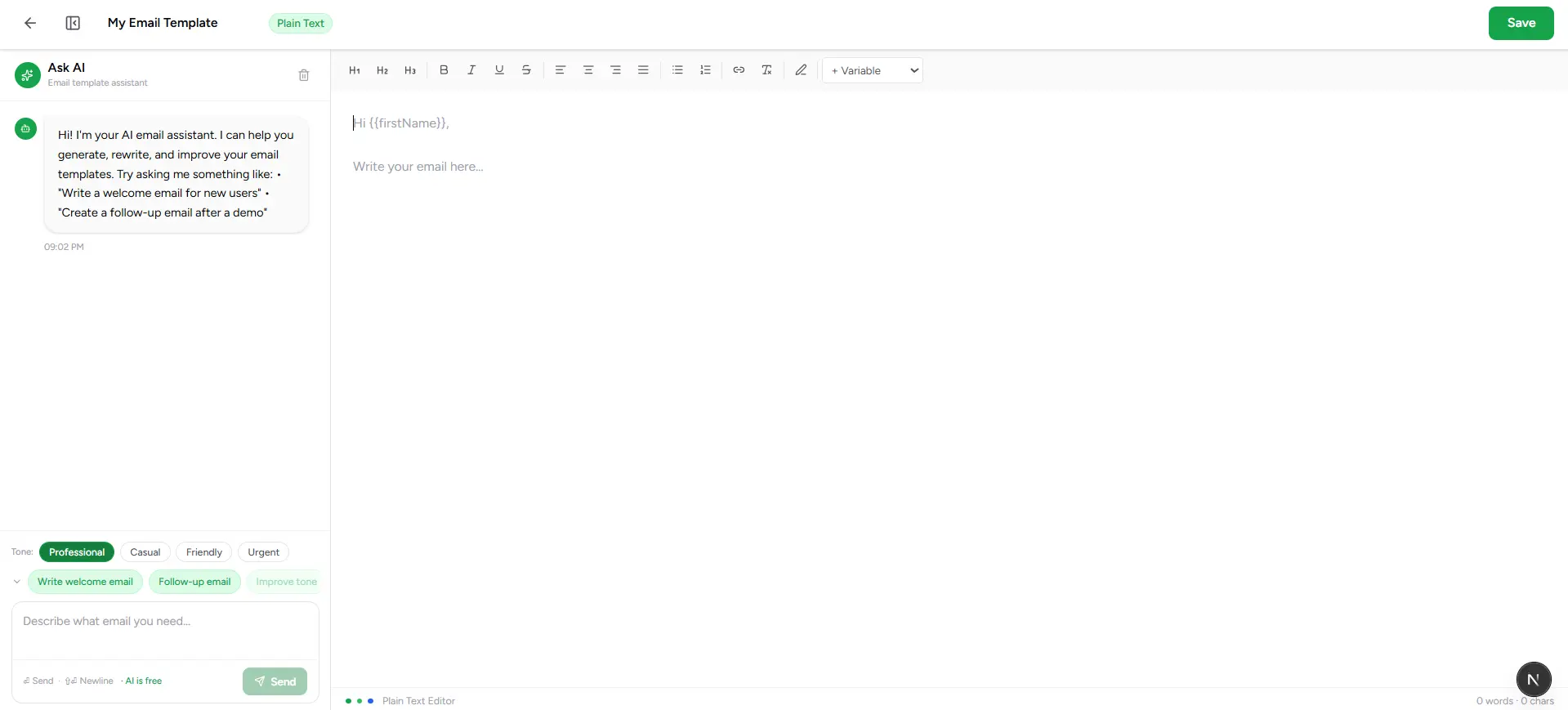
Despite the name, this isn't a bare textarea — it's a real rich-text editor built for the emails that should feel personal, not designed: follow-ups, cold outreach, quick announcements. Format with a proper toolbar, personalize with variables, and let AI handle the first draft or the tenth rewrite.
Write clean, personal emails that feel direct, natural, and human.
How it works
Write, or start with a prompt
Type directly, or use one of the starter prompts — Write welcome email, Follow-up email, Cold outreach — to get a first draft going.
Format with the toolbar
Headings, bold, italic, underline, strikethrough, alignment, bullet and numbered lists, and links — a real formatting bar above the editor.
Insert variables
Type {{ to trigger the same autocomplete used everywhere else in Templates.
Set a tone
Professional, Casual, Friendly, or Urgent — shapes how the AI writes and rewrites for you.
Save
To your library, or straight back into the campaign you started from.
AI assistant
Chat panel with tone control and a model selector — describe what you need in plain language.
Editor
A real rich-text workspace — formatting toolbar, variable autocomplete, and signature insert included.
Draft versions
Every AI-generated draft from this session is kept in a list — restore any earlier one with one click.
Key features
The AI reads what you've already written
Once there's a draft, the suggestion chips change to match it — "Shorten it" appears on long drafts, "Expand it" on short ones, "Add CTA" only if there isn't one yet, "Personalize" only if {{firstName}} or {{company}} are missing.
AI-suggested subject lines
Generate a handful of subject line options based on your current draft and chosen tone — pick one instead of staring at a blank subject field.
Draft version history
Every version the AI has generated this session is listed and restorable — experiment freely without losing a draft you liked better.
Insert a saved signature
Drop in a signature you've saved in Settings, right at the cursor.