Code template editor
Full HTML control with a chat-based AI assistant that writes straight into your editor, plus live preview.
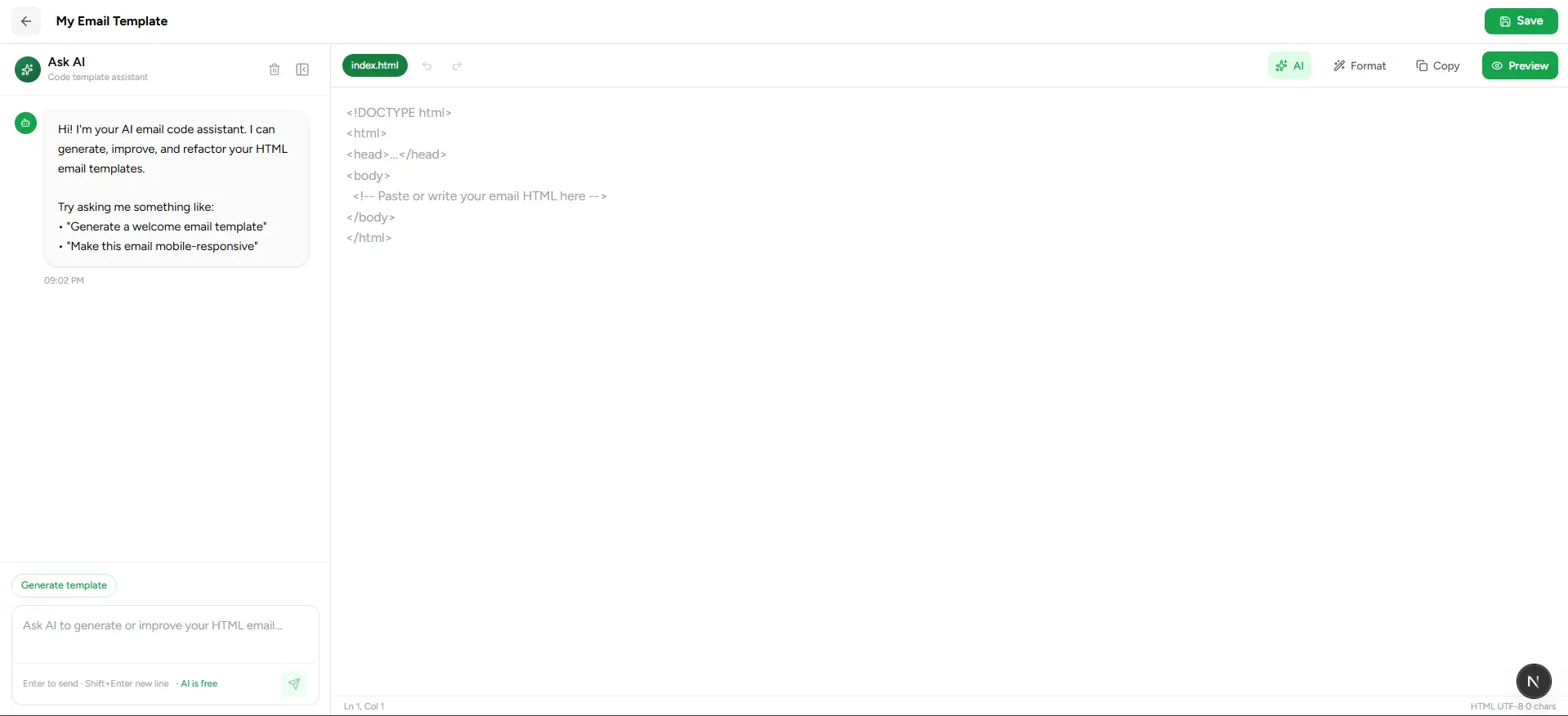
Full HTML control, without losing the speed of AI. Write and edit raw markup in the center panel, chat with an AI assistant that writes straight into your code, and watch it all render live — three panels, one screen.
Craft custom emails with full control over HTML, styling, and layout.
How it works
Write or paste HTML
The center panel is a real code editor — bring existing markup or start typing from scratch.
Or ask the AI assistant
Describe what you want in the chat panel on the left — it generates HTML and applies it directly to your editor.
Check the live preview
Toggle the preview panel on the right to see the rendered email update as you type.
Format before you save
Click Format to auto-clean and re-indent the HTML — especially handy right after an AI generation.
Save
Writes the template to your library, or straight back into your campaign if that's where you started.
AI assistant
Resizable, collapsible chat panel on the left — describe changes in plain language.
Code editor
The center HTML workspace, with the same {{ }} variable autocomplete as everywhere else in Templates.
Live preview
Resizable, collapsible panel on the right — off by default, and remembers your choice next time.
The AI assistant, in detail
This isn't a generic chatbot bolted on the side — it's built specifically for email HTML, and it writes directly into your editor instead of dumping code into the chat for you to copy and paste.
Quick-start prompts
Generate template, Make responsive, Improve layout, Add CTA button — one click to kick off common requests without typing them out.
Smart follow-ups
After a response, contextual chips appear — Add dark mode, Fix spacing, Simplify HTML, Add header — for the next obvious tweak.
Pick your model
A model selector lets you choose which AI does the writing, same as the model picker you'll see elsewhere in the app.
Streams in, applies automatically
Responses stream in real time, and any generated HTML is applied to the editor the moment it's ready — no manual copy-paste step.
Everything else in the toolbar
Undo & redo
Ctrl+Z and Ctrl+Y (Cmd on Mac), same as the other two editors.
Insert a signature
Drop in one of your saved signatures (managed in Settings) at the cursor — no retyping your sign-off on every template.
Copy & Preview
Copy the raw HTML to your clipboard, or open Preview for a full-size rendered view.
Status bar
Line and column position, a live count of valid vs. unrecognized {{ }} variables, and total character count — right at the bottom, IDE-style.