Import leads (CSV & CRM)
Bring contacts in from a spreadsheet or straight from HubSpot, Pipedrive, or Zoho.
Not everyone you want to reach is in Prospeo's database — sometimes you already have the list. Import leads from a spreadsheet or straight from a connected CRM, reachable from Saved Lists or from inside a campaign's Leads step. Map fields, review and fix records inline, then confirm — the same clean workflow no matter the source.
Bring your prospects into Stynar, organize them effortlessly, and get them ready for outreach.
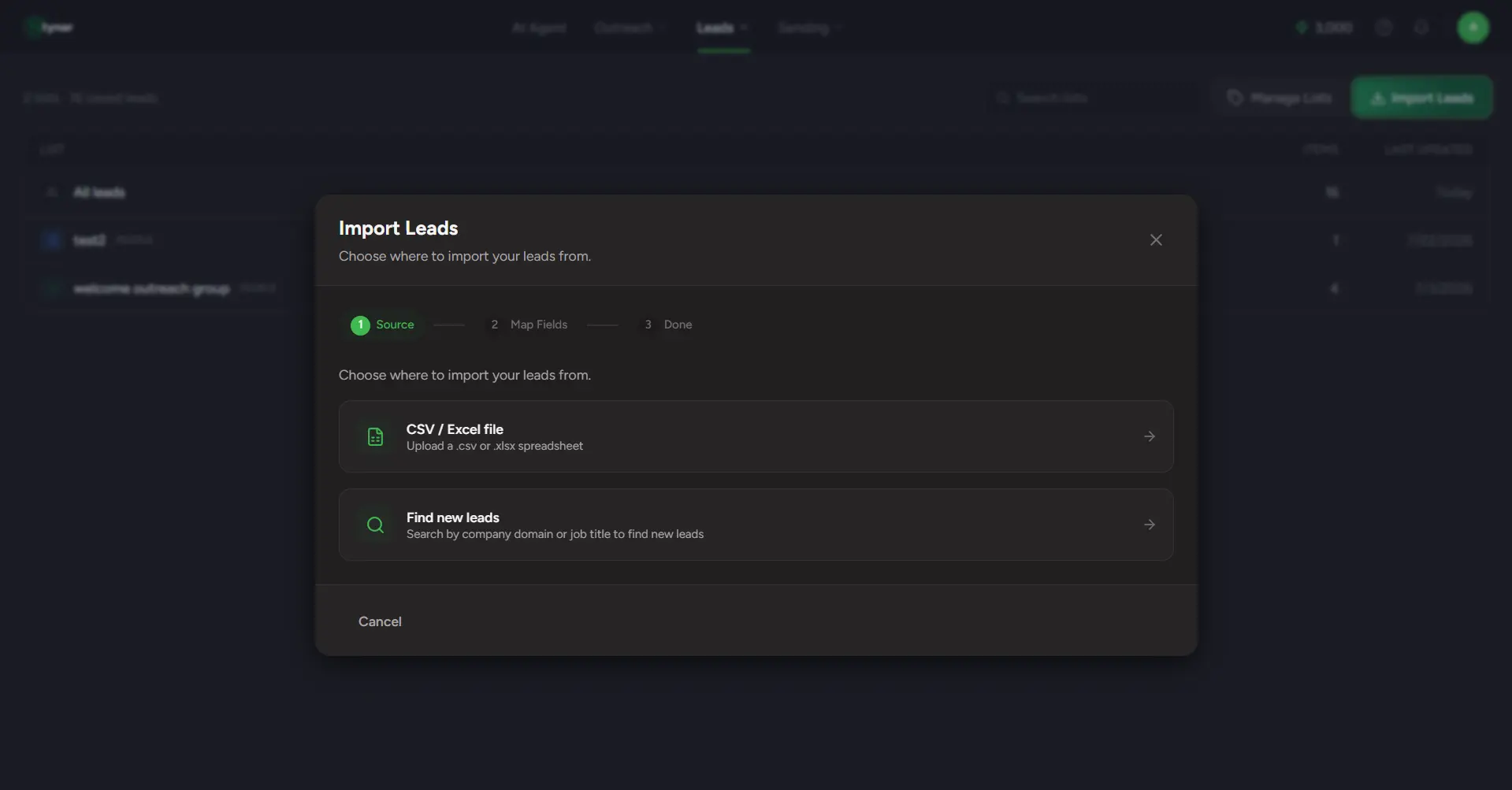
CSV upload
Upload any CSV or Excel file containing your contacts. Email and first name are required — all additional columns are carried in as custom template variables.
Column mapping
Match file or CRM column headers to standard lead fields — first name, last name, email, phone, company — or custom variables. Columns marked 'skip' are ignored during import.
Inline editing
Edit any contact field directly in the review table. Use Tab to move between cells and Enter to advance rows — no separate modal needed.
Add leads manually
Add individual contacts during the review step without uploading a new file — useful for filling gaps or adding contacts one at a time.
Add custom columns
Insert new data columns during review and fill in values for all leads before finalizing the import.
Validation banners
Red banners block upload for missing required fields. Yellow banners warn about incomplete optional data — so issues can be fixed before contacts are imported.
CRM import
Connect HubSpot, Pipedrive, or Zoho CRM and pull contacts in directly — no spreadsheet export from your CRM required.
email,firstName,lastName,company,website,linkedIn
maya@northstar.io,Maya,Rao,Northstar,https://northstar.io,https://linkedin.com/in/mayaChoose your import source
Pick CSV Upload to import from a file, or CRM Import to pull contacts from a connected CRM platform.
Upload or connect
For CSV: select the file from your device. For CRM: authenticate your account and choose which contacts to bring in.
Map your fields
Match your file or CRM column headers to the corresponding lead fields. Unmapped or custom columns become personalization variables available in email templates.
Review, edit, and confirm
Inspect imported records in the review table. Edit missing fields inline, add individual contacts manually, resolve validation warnings, then confirm to finalize the import.
CRM Integrations
Stynar connects directly to your CRM so you can import contacts without ever exporting a spreadsheet. Authenticate your HubSpot, Pipedrive, or Zoho CRM account, browse your existing contacts, and bring them into the platform in just a few steps — with field mapping included to ensure your data carries over cleanly.
Secure authentication
Connect HubSpot, Pipedrive, or Zoho CRM using OAuth — your CRM credentials are authenticated directly with the provider and never stored on the platform.
Contact browsing
Browse your full CRM contact list and select exactly who you want to import — individual records, filtered views, or entire contact lists.
Field mapping
Map CRM contact properties to Stynar lead fields before importing — so names, emails, companies, and custom fields all land in the right place.
No manual exports
Import fresh data straight from the source — no CSV files to prepare, no version drift between your CRM and your campaign audience.
Supported CRM Platforms
| Field | What it means |
|---|---|
| HubSpot | Connect your HubSpot CRM via OAuth and import contacts — including name, email, company, and any mapped custom contact properties. |
| Pipedrive | Connect Pipedrive via OAuth and import contacts directly — name, email, company, and any mapped custom fields carry over. |
| Zoho CRM | Connect Zoho CRM and import leads and contacts — name, email, company, and custom module fields can all be mapped during the import flow. |